USTA leagues (US only)
Import your TennisLink files once, take availability in the app instead of on the USTA website, and let the Racket Captain™ USTA Genie recommend every lineup.
Abrir en la app →-
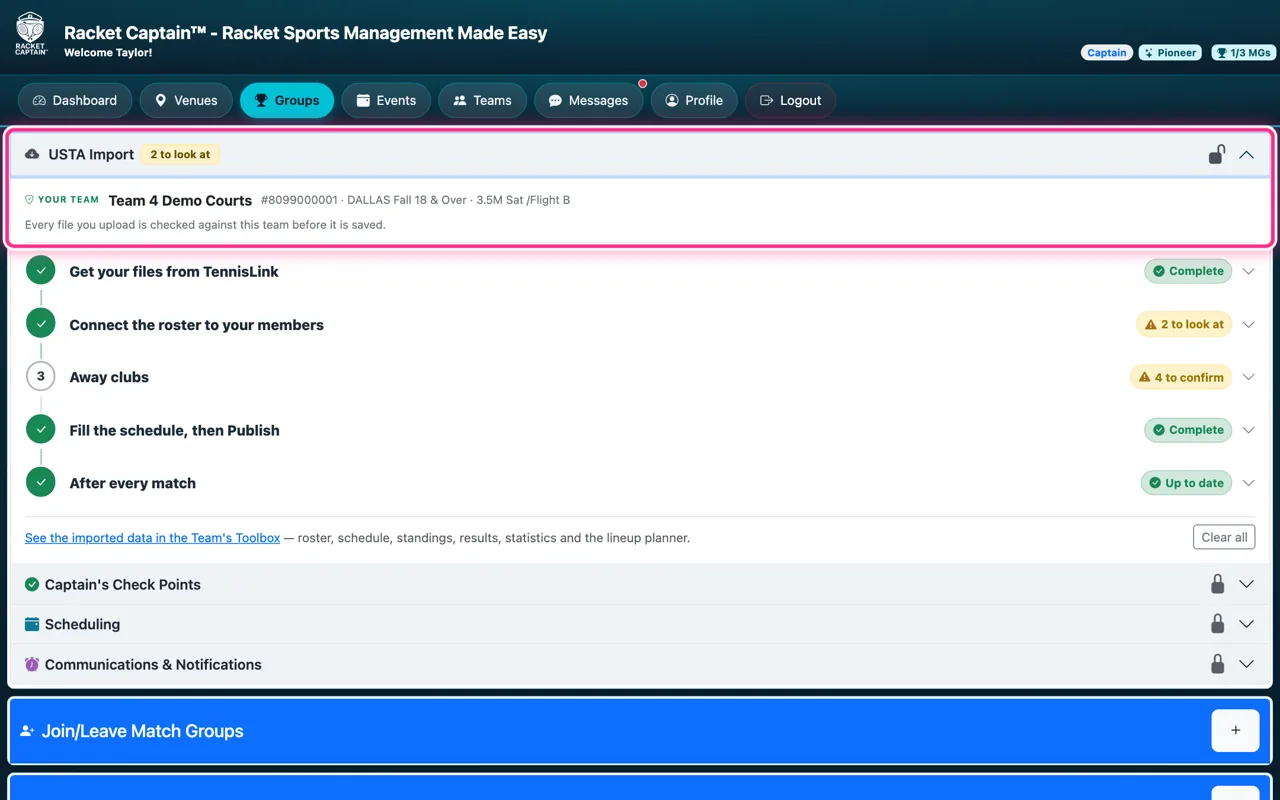
Paso 1. On your group's edit page, open USTA Import. Your team at the top is the USTA team every file is checked against. Below it are the set-up steps, each with a badge that says where you are.
-
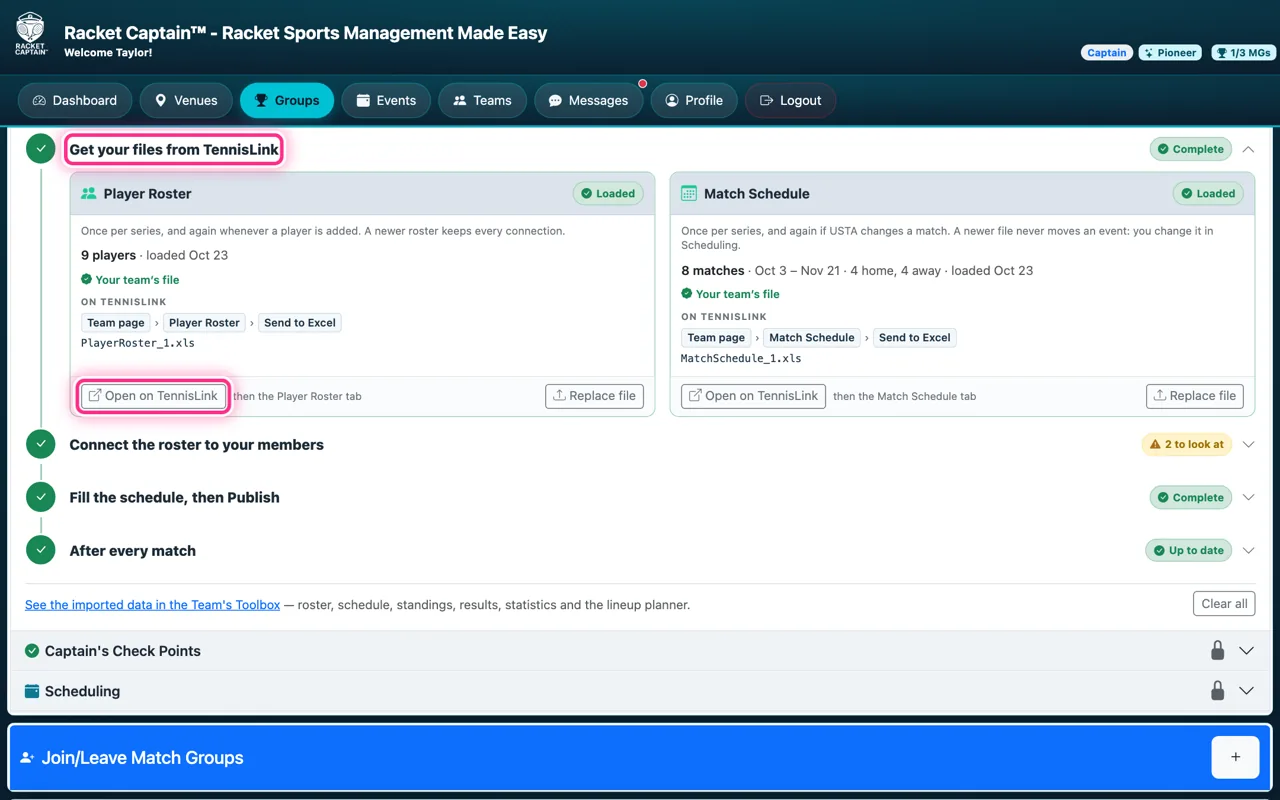
Paso 2. Open Get your files from TennisLink. The Player Roster and the Match Schedule each have their own card, with the way to the file on TennisLink. Open on TennisLink takes you there; then upload the file on its card. Uploading the Match Schedule fills your group's dates for you.
-
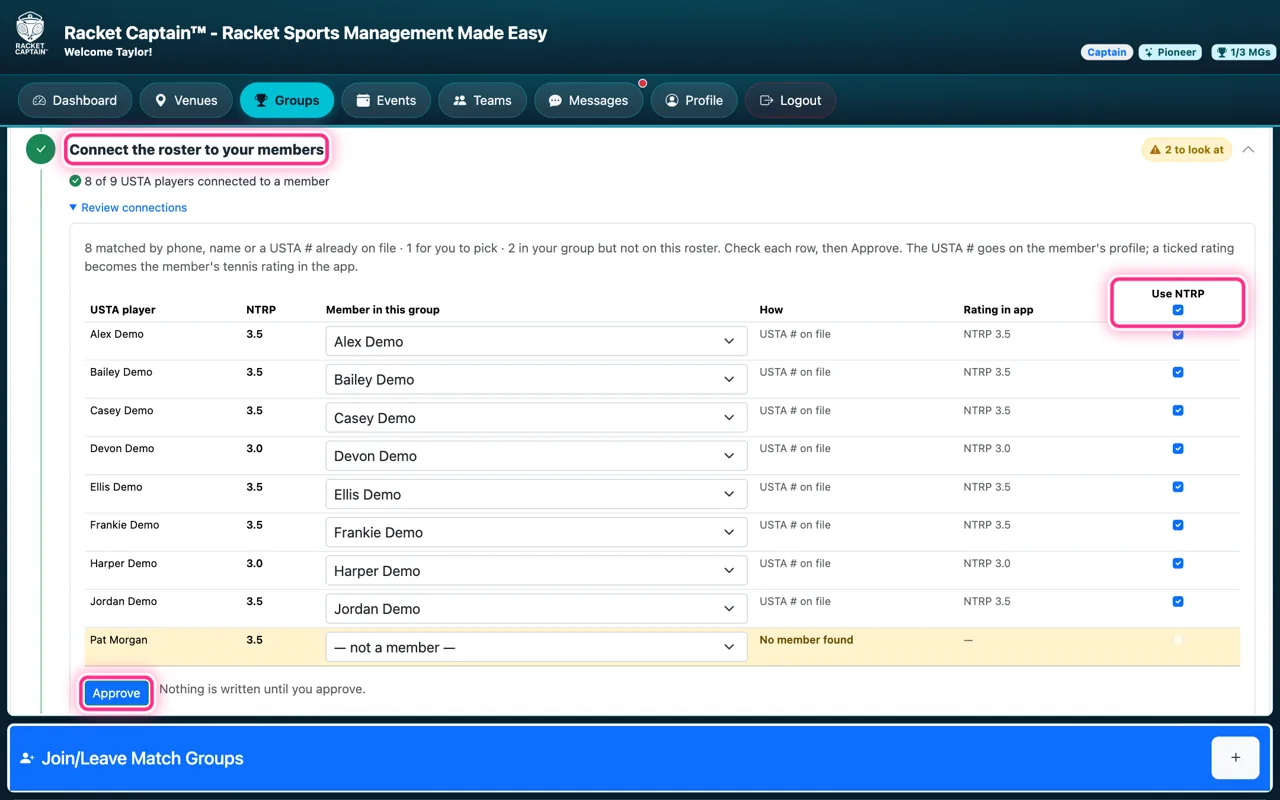
Paso 3. Open Connect the roster to your members. Each player on the USTA file is matched to a member of your group — pick the right one where needed. Use NTRP makes the USTA rating the player's rating in the app; untick it to keep their own. Nothing is saved until you tap Approve.
-
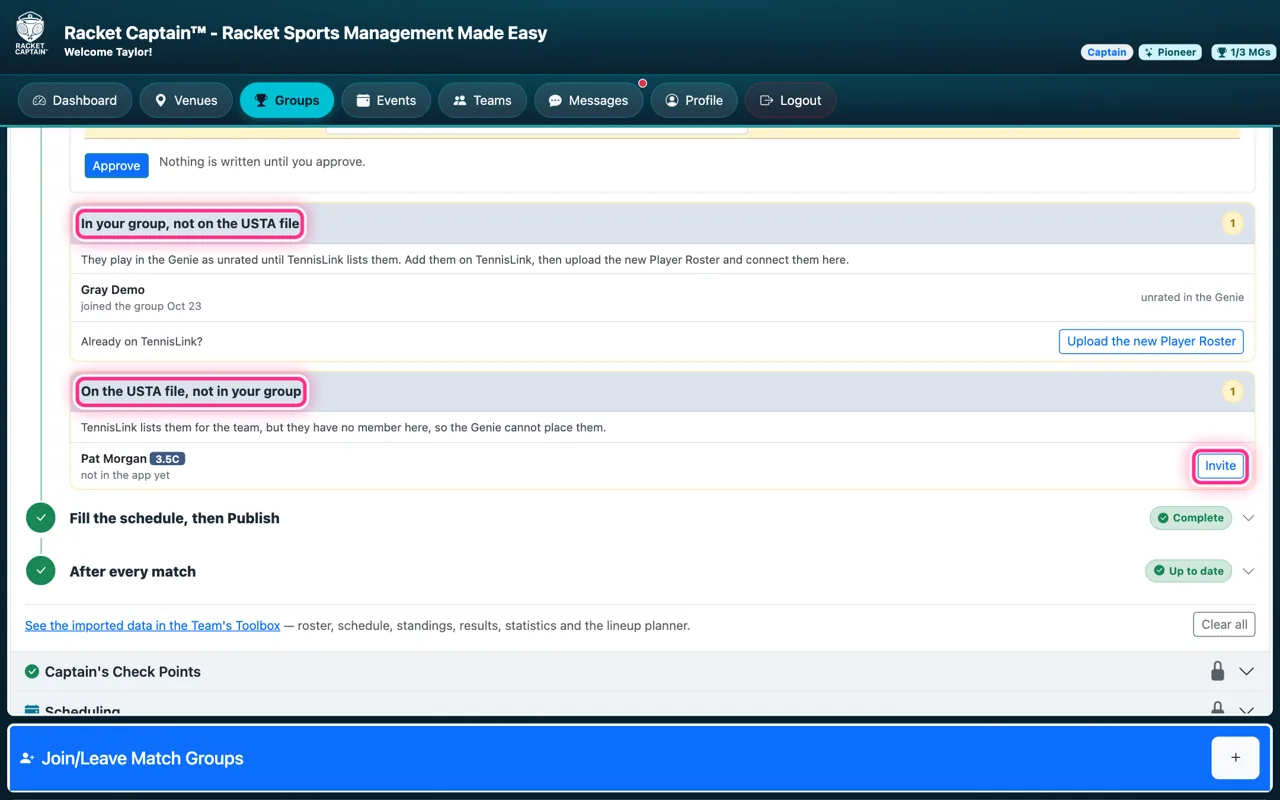
Paso 4. Below it, two boxes show the gaps. In your group, not on the USTA file: add them on TennisLink, then upload the new Player Roster. On the USTA file, not in your group: tap Invite.
-
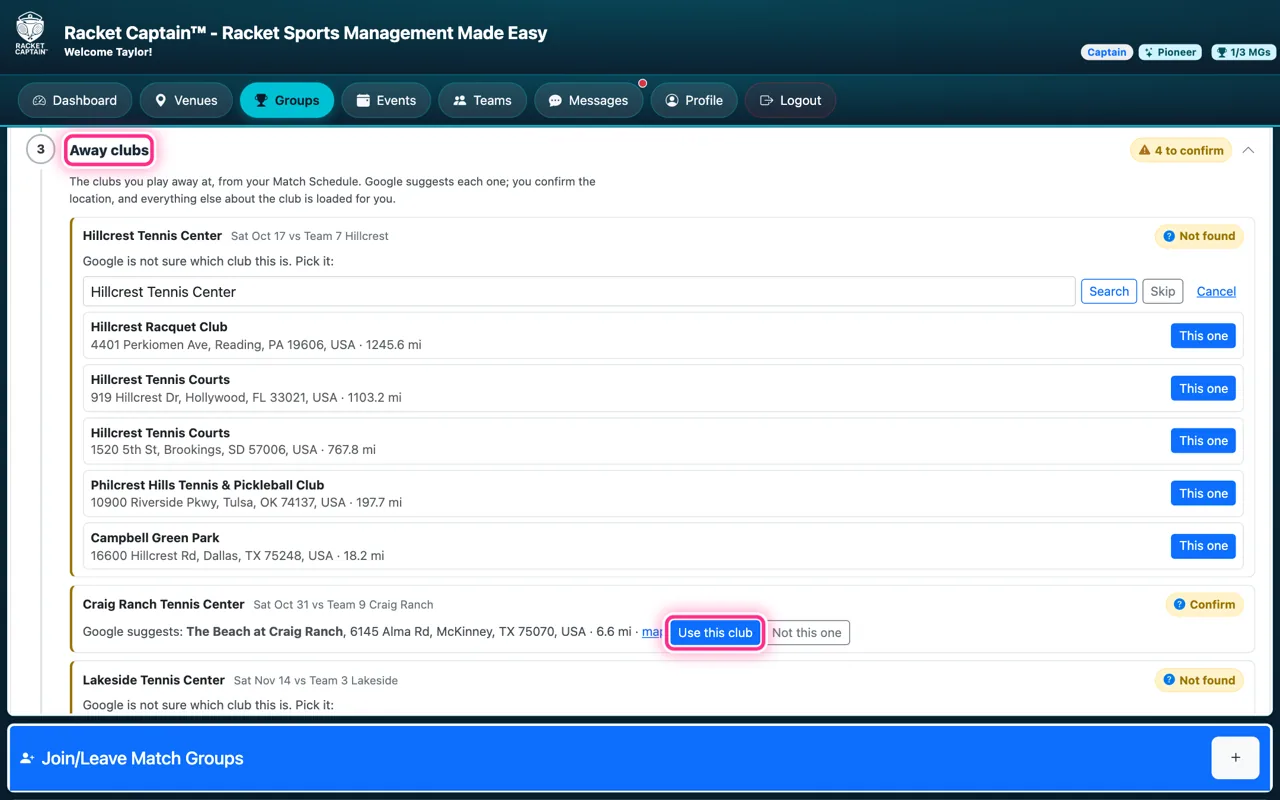
Paso 5. Open Away clubs. Every club you play away at, from your Match Schedule, gets a row: Google suggests the club with its address, the distance and a map. Tap Use this club if it is right, or Not this one. A found club shows Wrong club? to pick again later. If Google is not sure, it lists its best guesses: tap This one, Search again, or Skip — that match's notices then name your home venue. The badge says how many are left to confirm. Once a club is confirmed, the invitations, reminders, lineup notice and match report name it, with a map.
-
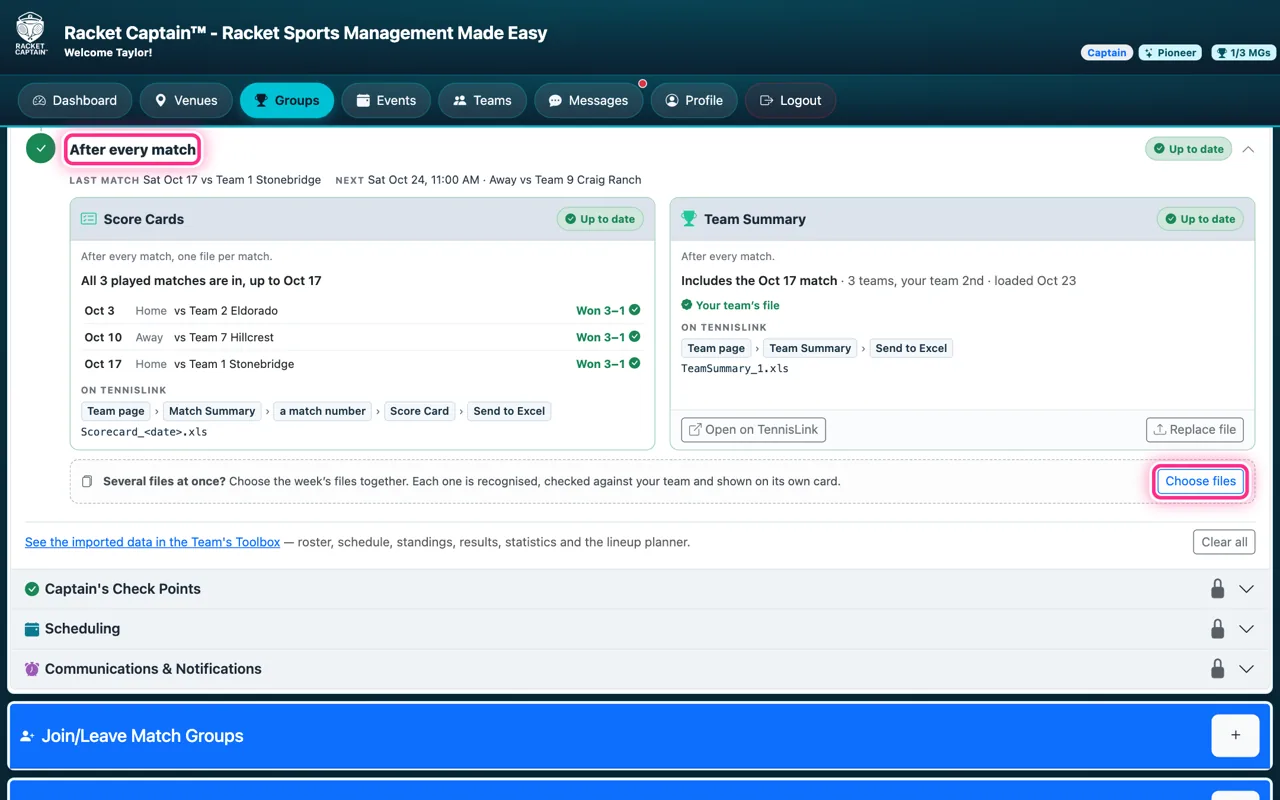
Paso 6. After every match, upload that match's Score Card and the new Team Summary. The Score Card is the result — there are no scores to type in. Choose files takes the week's files together.
-
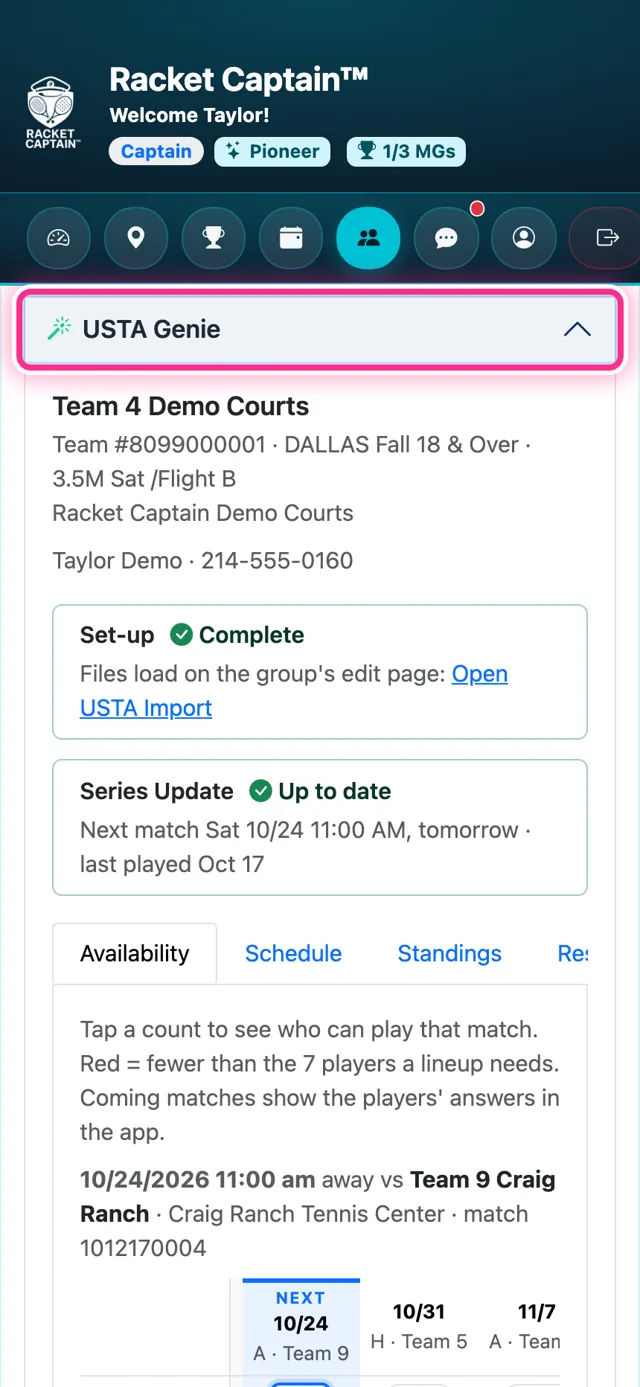
Paso 7. On the Teams page, open the Racket Captain™ USTA Genie. Set-up and Series Update tell you if anything is waiting, and when the next match is.
-
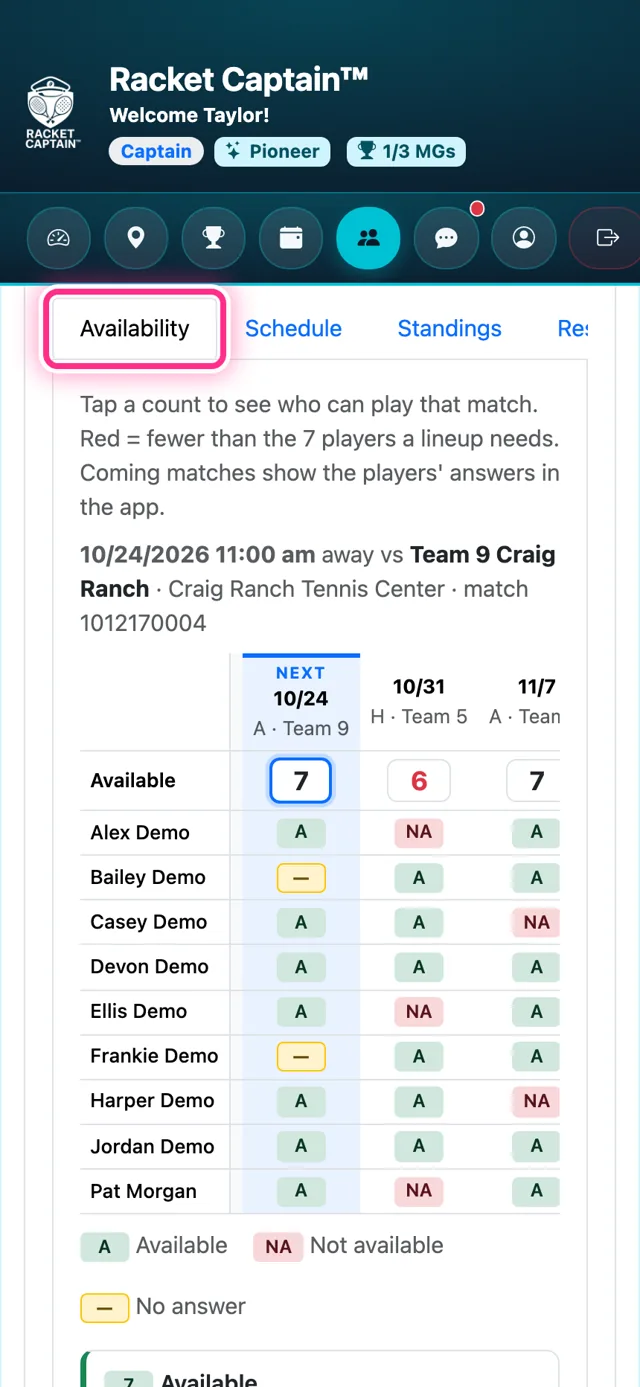
Paso 8. Availability has a column for each match, with the number of players who can play at the top. A red number means fewer than the lineup needs. Tap a number to see who said yes and who hasn't answered.
-
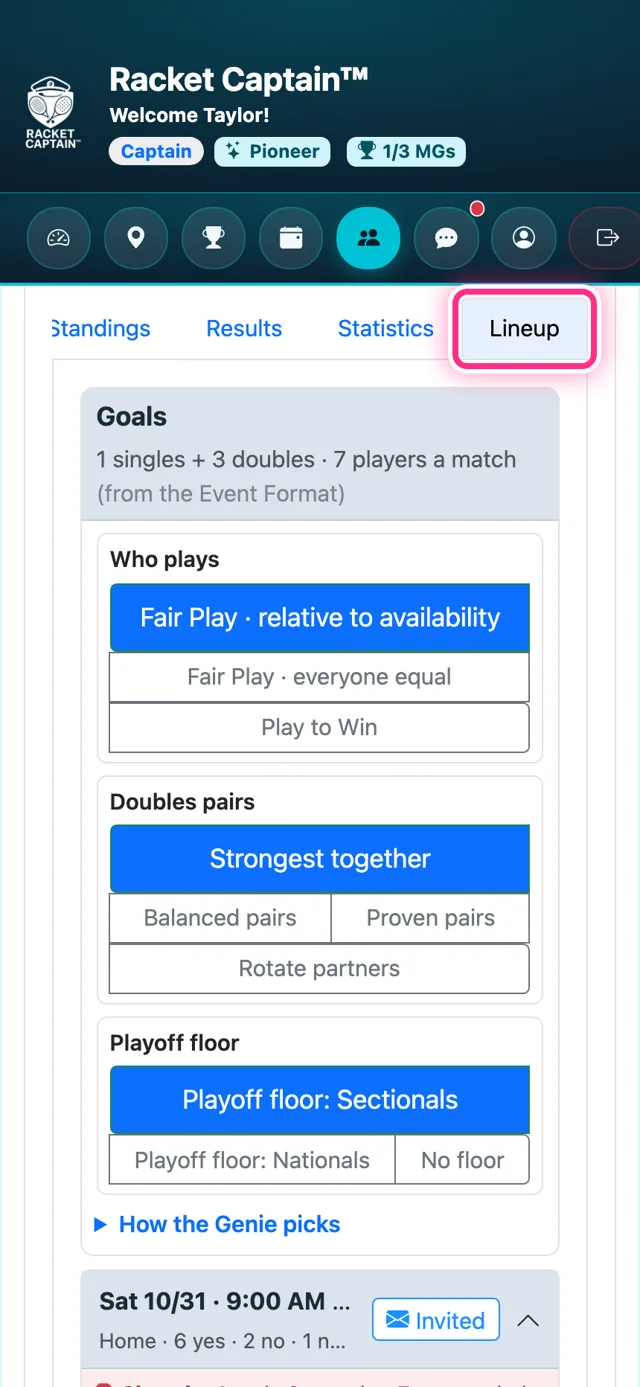
Paso 9. Lineup is for the next match. Set your goals — Who plays, Doubles pairs and the Playoff floor — and the Genie recommends a lineup from the players who said yes.
-
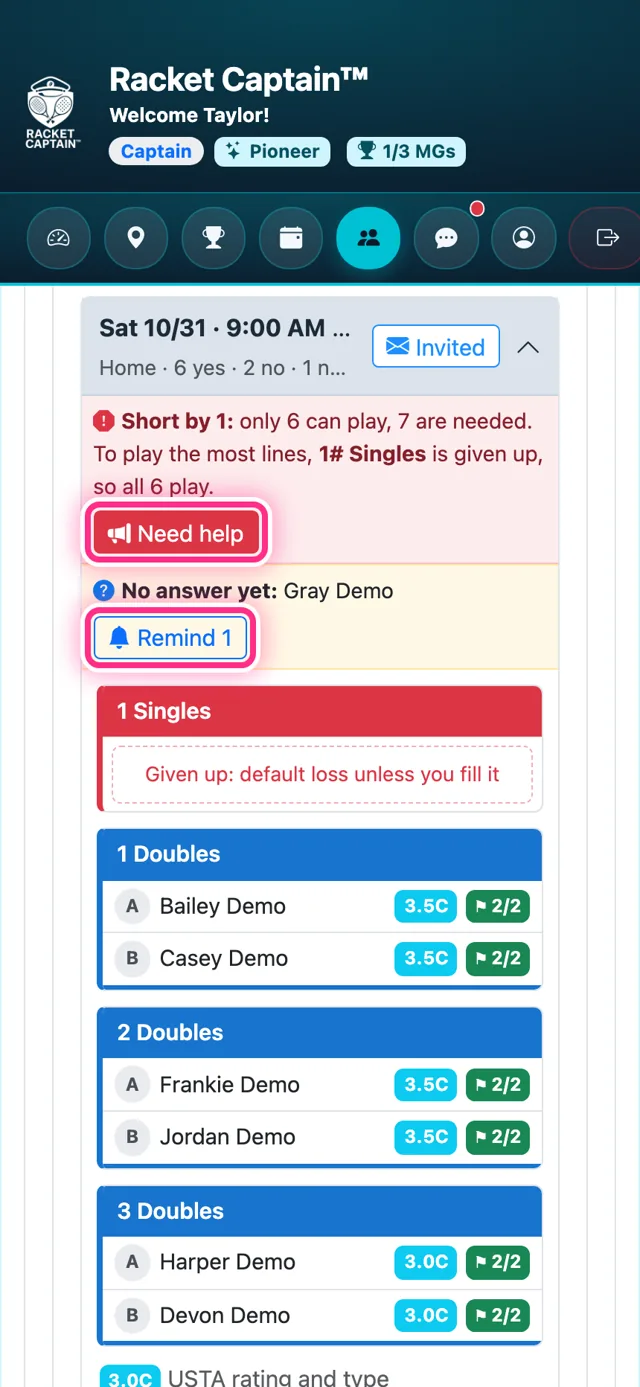
Paso 10. Below the goals is the match itself. Drag a player, or tap a player then a line, to change it — it saves itself. Remind asks the players who haven't answered. If you are short, Need help asks everyone who hasn't said yes.
-
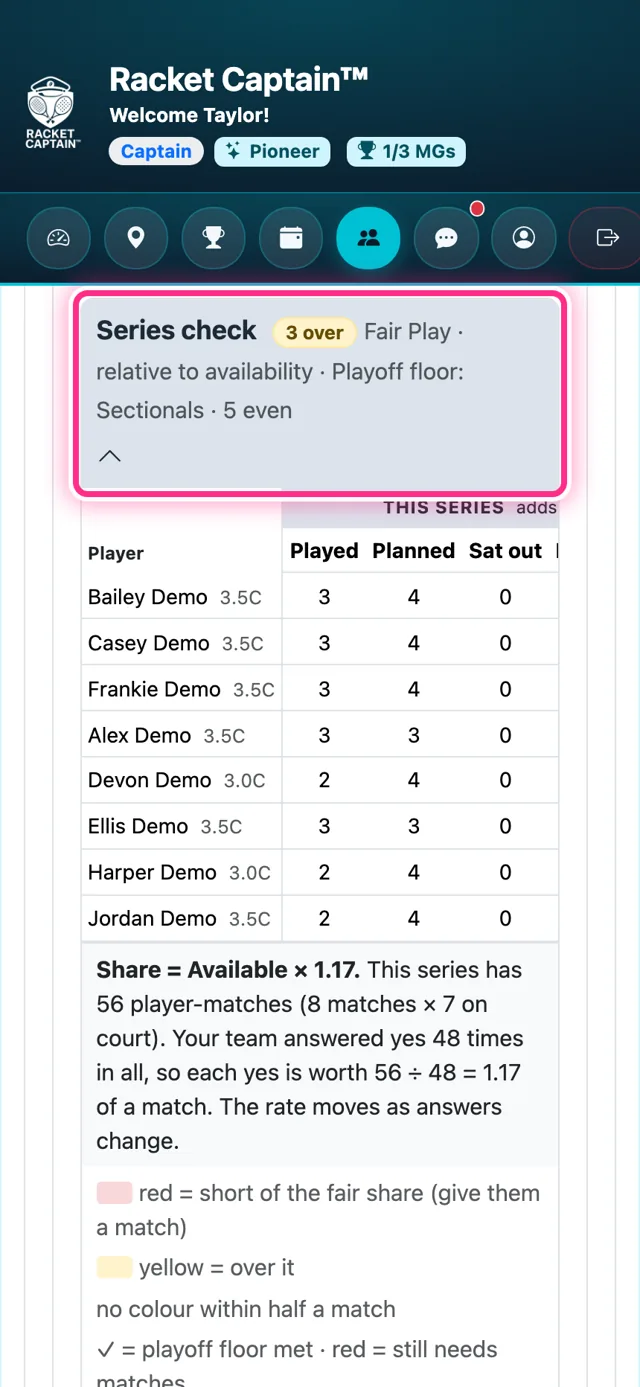
Paso 11. The Series check shows each player's matches played, planned and sat out, so everyone gets a fair share and reaches the playoff floor.
Conviene saber
- For USTA league teams in the United States. The USTA sections only appear in groups based in the US.
- After the first import, your players give their availability in Racket Captain — no more entering it on the USTA website. It sits right alongside all their recreational play.
- The USTA Genie is a Racket Captain tool. It is not made by or connected to the USTA.
- The imports read TennisLink's Send to Excel files. If TennisLink changes them, tell us and we'll update the import.
- Lock each lineup on the match's Event Assignment Review, as for any group. It shows the Genie's lineup, and your players get the lineup notice when you lock it.
- The Schedule, Standings, Results and Statistics tabs show what your TennisLink files say.
- Once the Series is live, a new Match Schedule never moves a match. Change a match in Scheduling; the app tells you when USTA's schedule and yours disagree.
- Playing anywhere else? Nothing changes for you.