Find your venue
Link yourself to the courts where you play — your club, park, school or HOA.
Open this in the app →-
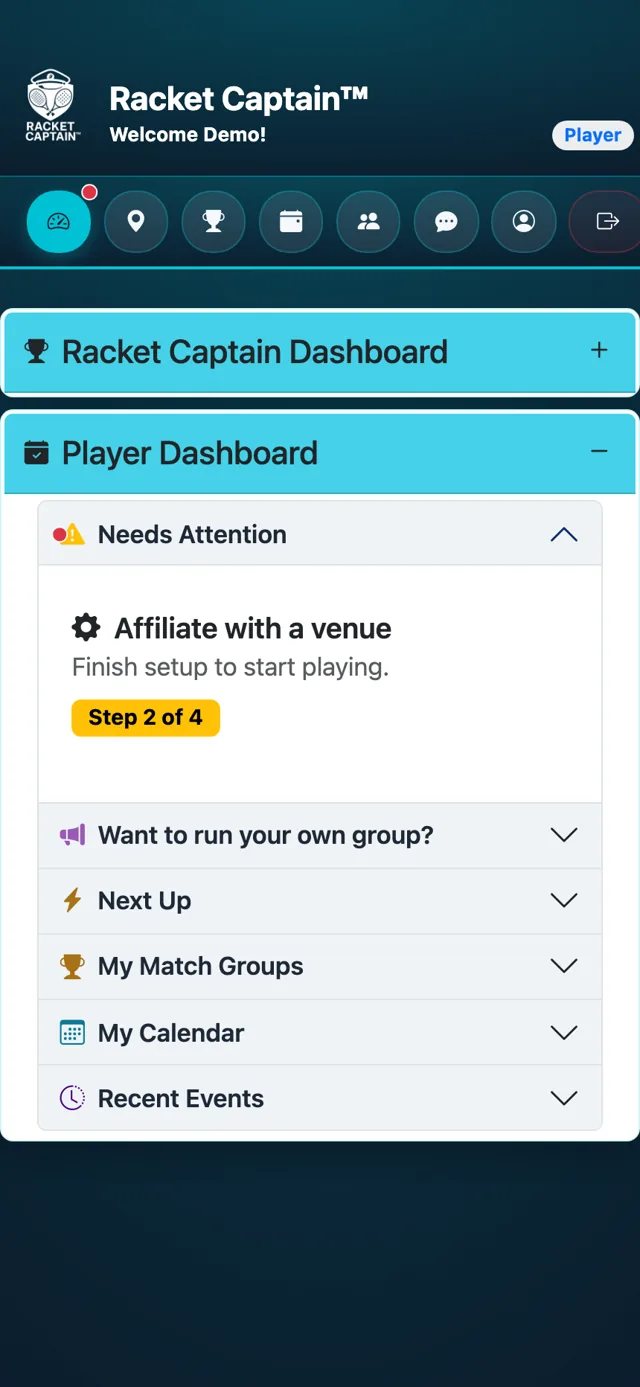
Step 1. On your Player Dashboard, tap Affiliate with a venue. The Join/Leave Venues card opens on the Available tab, with venues near you listed first.
-
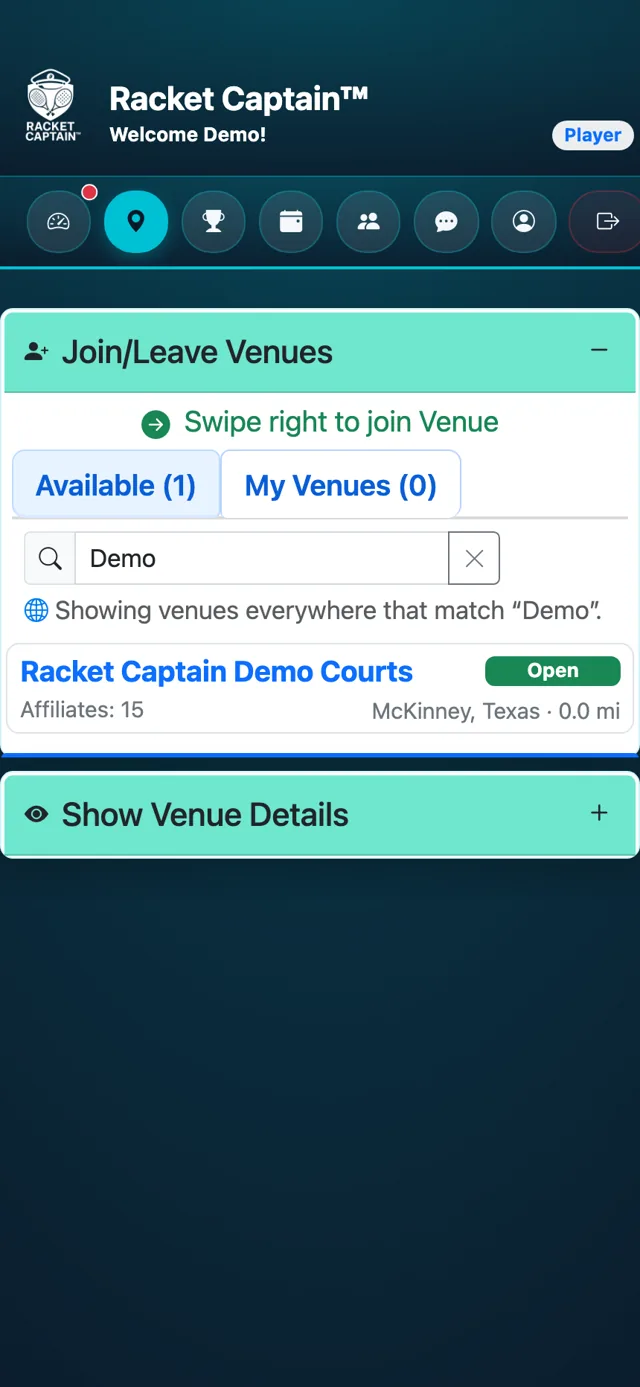
Step 2. Type your venue's name or city in the search box.
-
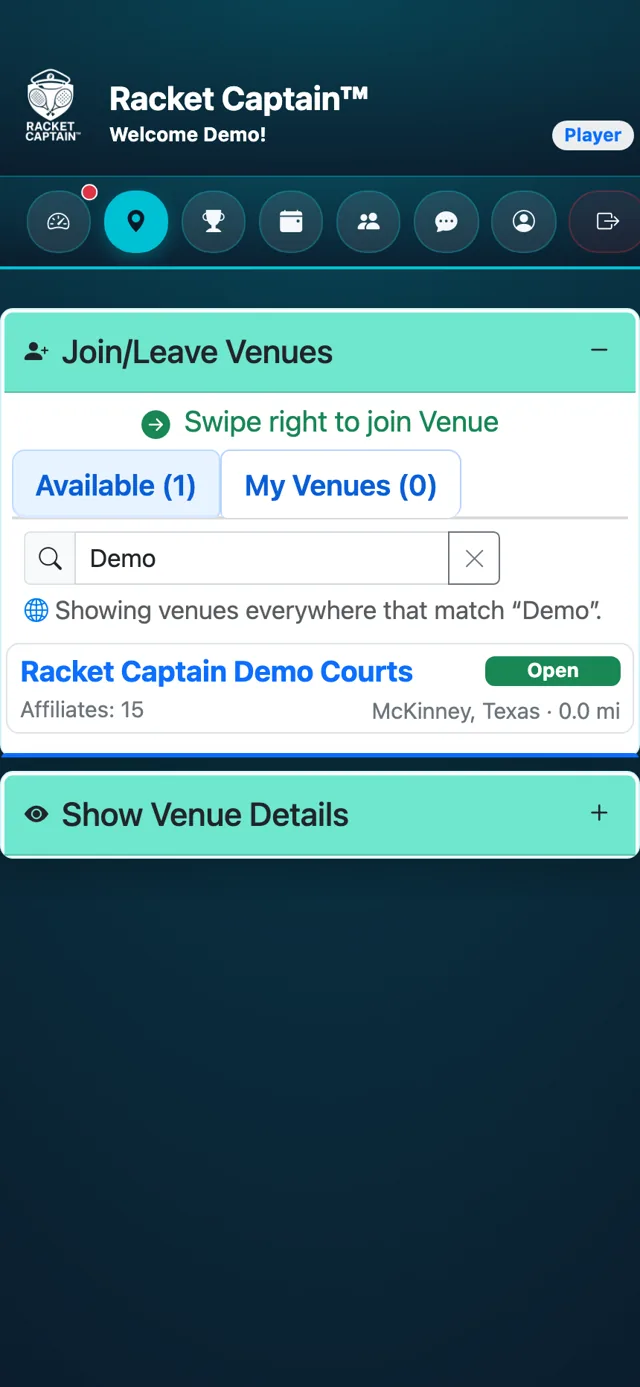
Step 3. Tap the + next to your venue — or, on a phone, swipe right anywhere on its row and tap the button that appears. Join Status tells you what happens: Open joins you right away, Request asks the venue to approve you.
-
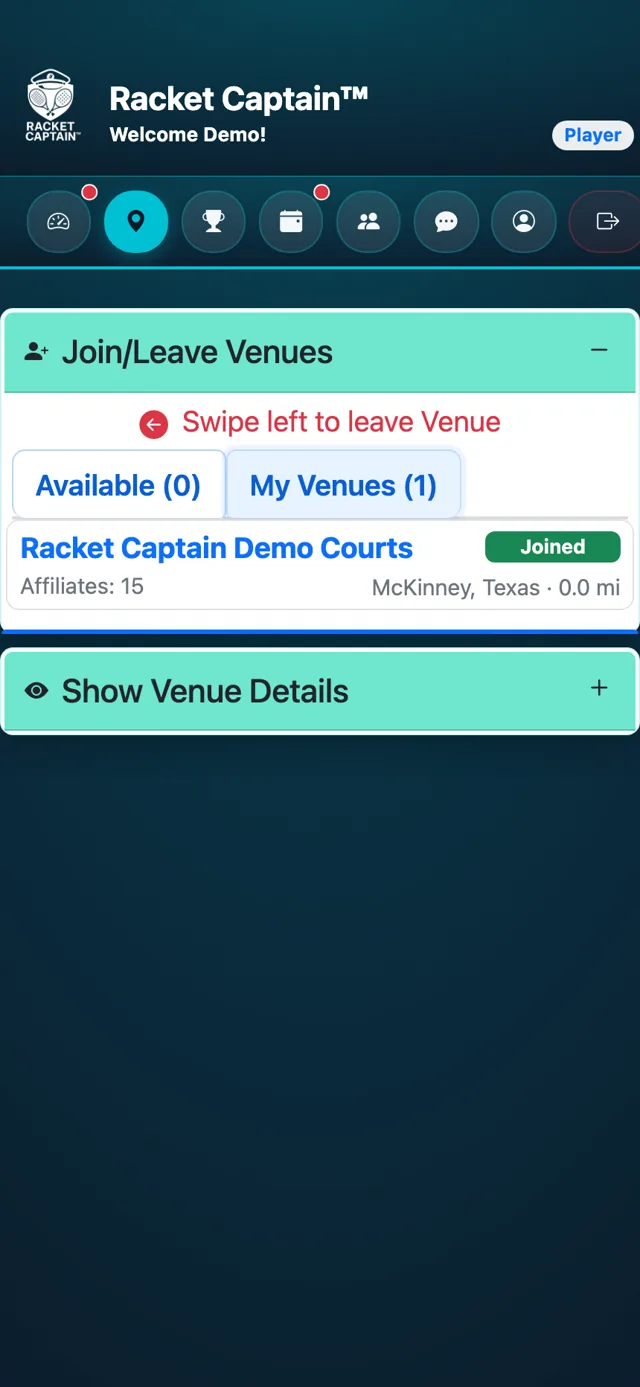
Step 4. Done. The venue shows Joined and moves to your My Venues tab. If it needed approval, it shows Pending until the venue says yes.
Good to know
- Joining a venue lets you join its Match Groups, see its schedule and use the venue chat.
- Open a venue's details to see more about it, including whether it is Verified.
- Changed your mind while a request is pending? Tap Cancel on that row.
- Got an invite link from your captain? You can skip this guide — joining your team joins its venue too.
- To leave a venue on a phone, swipe left anywhere on its row in My Venues and tap the button that appears.