Approve results
Take a moment here — this choice shapes every event in your series.
Players enter and confirm scores; you give the final approval.
Open this in the app →-
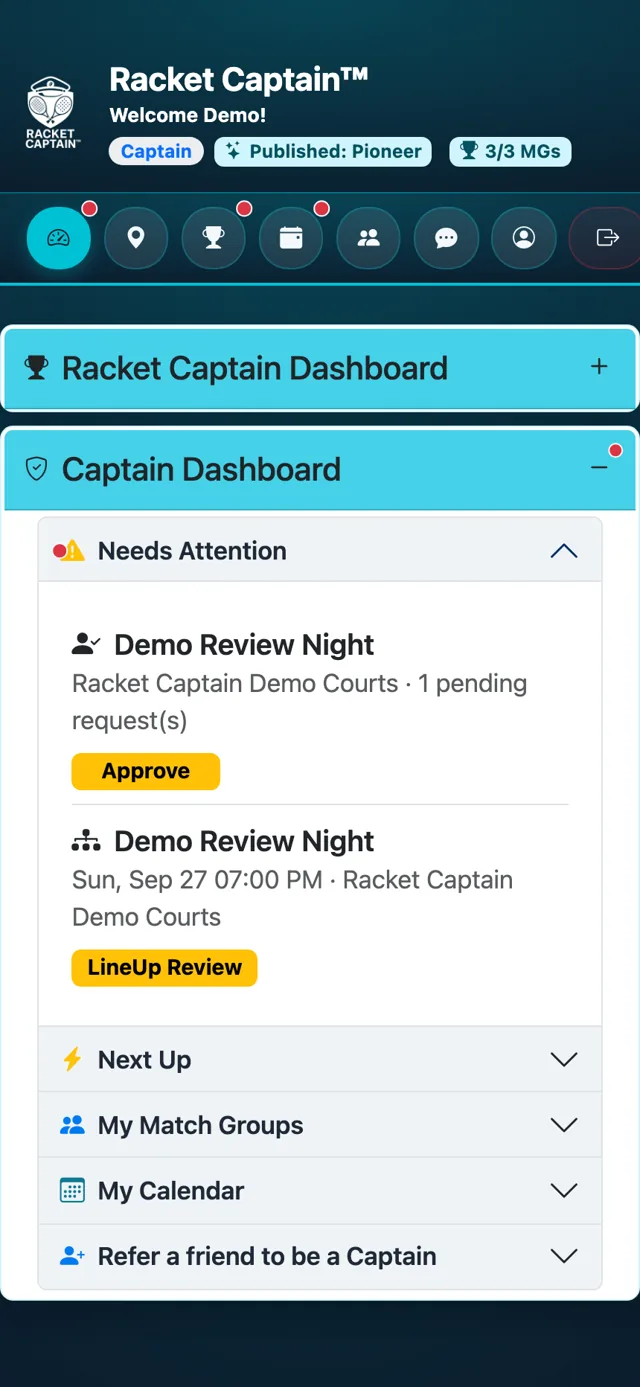
Step 1. After the event, players enter scores and a second player on each court confirms them. When they're in, Needs Attention shows Review Results — tap it.
-
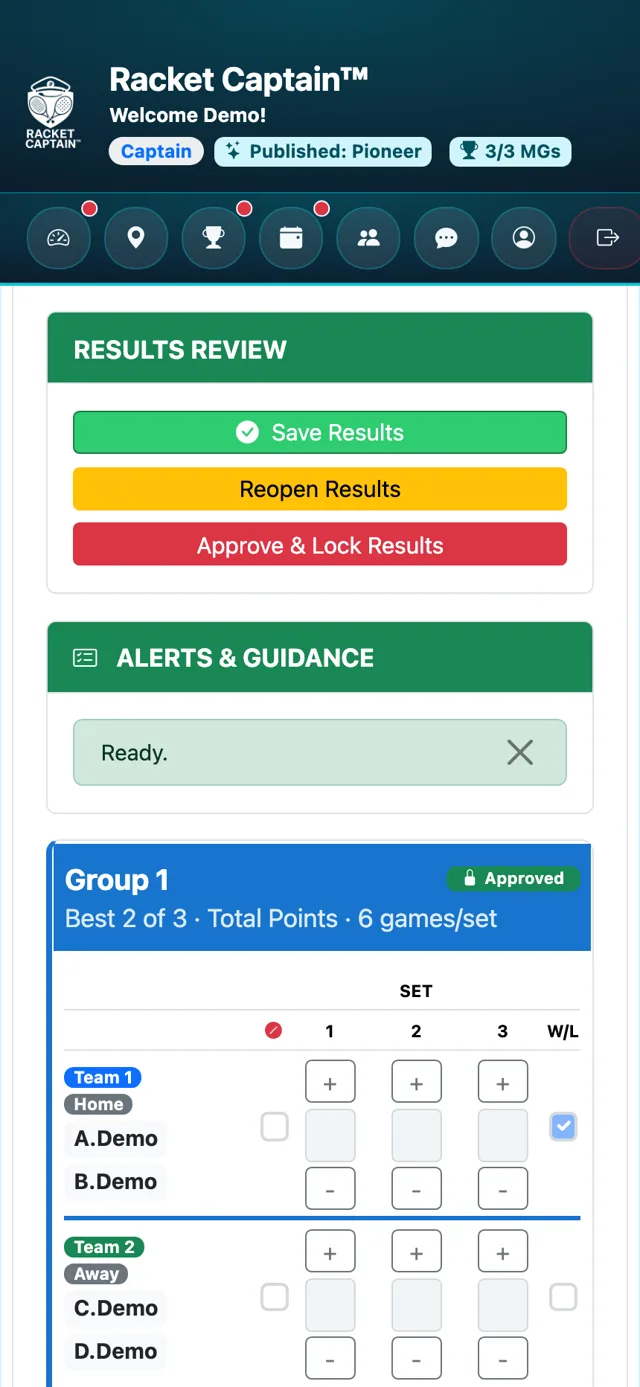
Step 2. In RESULTS REVIEW, check each court. Fix anything with Save Results, then tap Approve & Lock Results. Standings update.
-
Step 3. Spotted a mistake later? Tap Reopen Results, fix it, and approve again.
Fields in this section
| Field | What it means |
|---|---|
| Approve & Lock Results | Finalizes the event's results. |
| Reopen Results | Clears the approval so results can be edited again — you can always reopen. |
| Second confirmation | Each court's scores are confirmed by another player on that court. If nobody confirms by the deadline, the submitted scores are approved automatically. |
Good to know
- Courts that are still incomplete come back to you to finish before final approval.
- Turn off Captain must manually approve results in Captain's Check Points to let results complete on their own — you can still reopen them.