Reminders & notifications
Take a moment here — this choice shapes every event in your series.
How your group's reminders work — timed from each event's start and end, set once, sent automatically.
Open this in the app →-
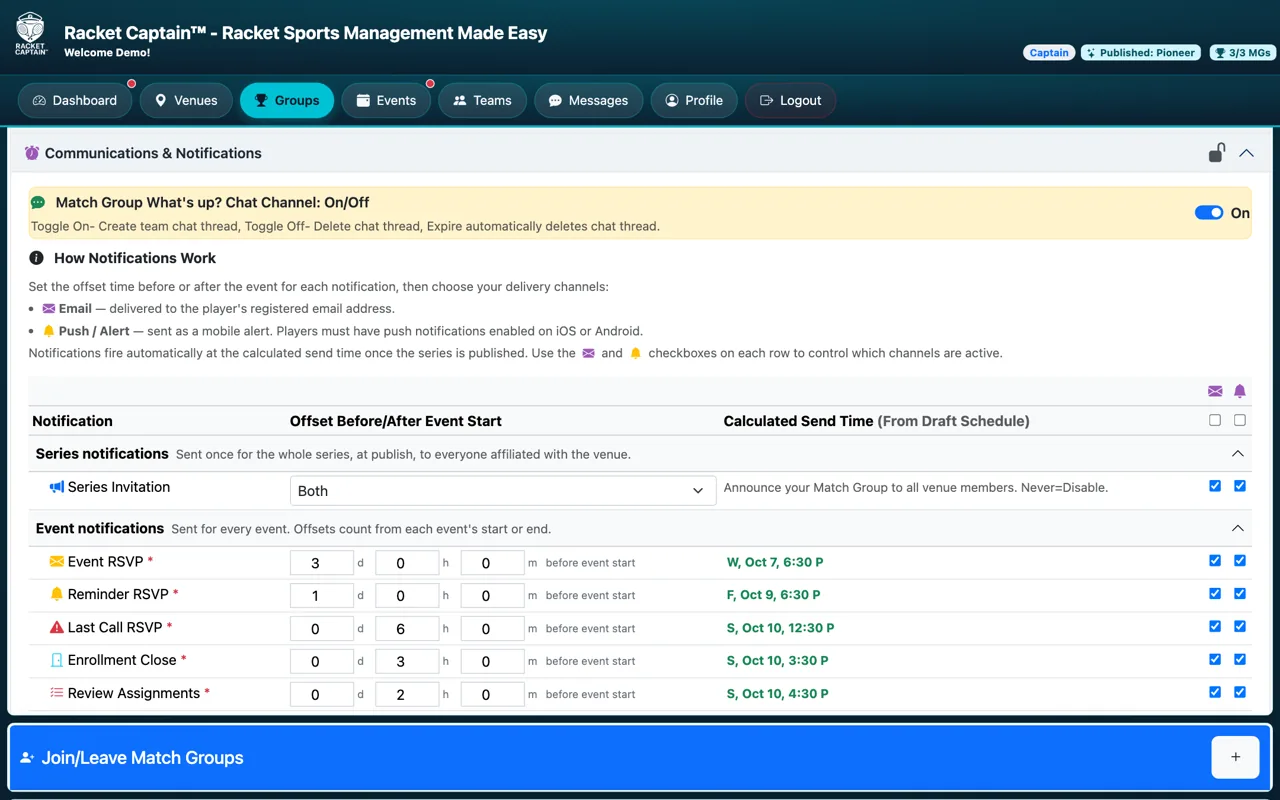
Step 1. Open your group's setup page and Communications & Notifications. At the top, Match Group What's up? Chat Channel switches your team chat On or Off. Below it, How Notifications Work explains the two channels: Email goes to each player's registered address, Push / Alert goes to their phone.
-
Step 2. Series notifications has one row, Series Invitation: the announcement sent once, when you publish, to everyone at your venue — not just your roster. Choose when it goes: Never, When first published, When republished after expired, or Both.
-
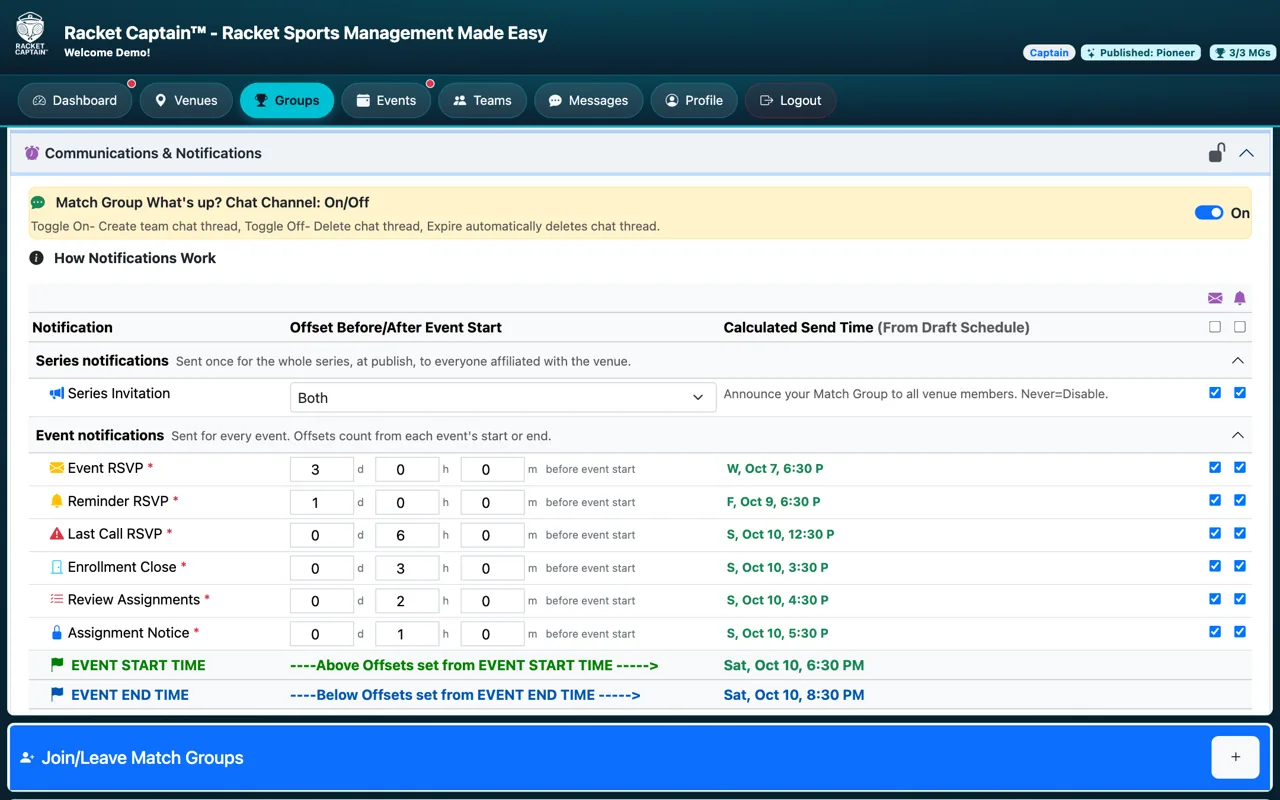
Step 3. Event notifications repeat for every event. The rows above the green EVENT START TIME line count back from the start: type days, hours and minutes (d / h / m) before event start for each one. Keep them in order — Event RSVP earliest, Assignment Notice last.
-
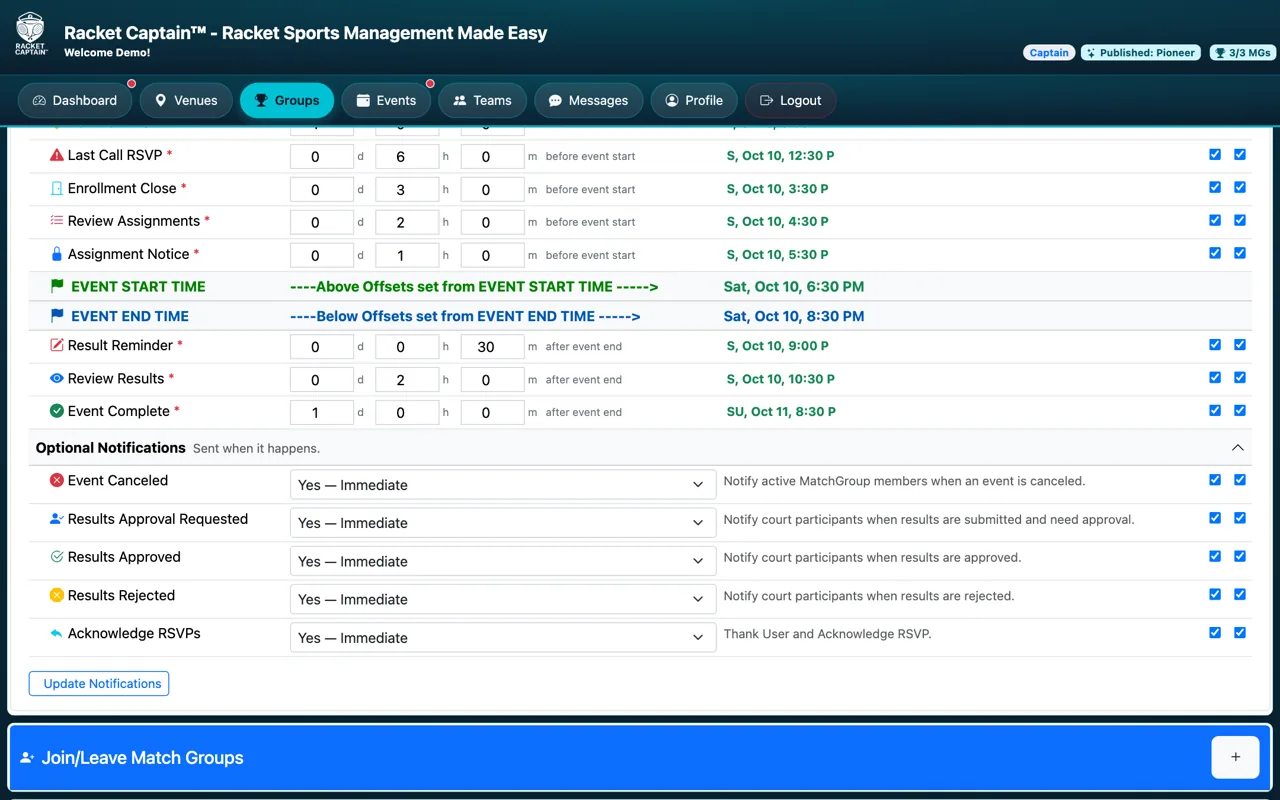
Step 4. The rows below the blue EVENT END TIME line count forward from the end: Result Reminder, Review Results and Event Complete, each a time after event end. For every row, Calculated Send Time shows exactly when it will go out for your first event — check it reads the way you expect.
-
Step 5. On each row, tick the Email and Push boxes for the channels you want (the boxes at the top select a whole column). Optional Notifications go out the moment something happens — set each to Yes — Immediate or No. Tap Update Notifications to save.
Fields in this section
| Field | What it means |
|---|---|
| Chat Channel: On/Off | On creates your team's chat thread. Off deletes the thread and all its history — the app warns you first, and turning it back on starts a brand-new thread. Expiring the group also deletes the chat. |
| Email / Push | The two channels for every row. Push only reaches players who allowed Racket Captain notifications on their iPhone or Android — remind your players to allow them. |
| Calculated Send Time | The exact date and time a row will be sent for your first event, worked out from the Scheduling section. It updates as you change an offset. |
| Series Invitation | Once per series, at publish — to everyone affiliated with your venue. It's how new players hear about your group. |
| Event RSVP | Before start. The invitation to answer for this event — to every active member of the group. Usually the earliest row, e.g. 3 days before. |
| Reminder RSVP | Before start. A nudge to members who haven't answered yet — people who already said Yes or No aren't bothered. |
| Last Call RSVP | Before start. The last chance to answer — to everyone except those who said No. |
| Enrollment Close | Before start. RSVPs close at this moment and members are told. After this, answers can't be changed. |
| Review Assignments | Before start. To you only — time to review and lock the lineup (when you review lineups yourself; see Captain's Check Points). |
| Assignment Notice | Before start. Tells players their court and matchup — to those in the lineup. Set it late enough for you to review, early enough for players to plan. |
| Result Reminder | After end. Asks the players on each court to enter their scores. |
| Review Results | After end. To you and your co-captains — time to review and approve the results. |
| Event Complete | After end. The wrap-up with the results — to the players in the lineup. |
| Event Canceled | When it happens. Tells members who said Yes that the event was canceled. |
| Results Approval Requested | When it happens. Asks the other players on a court to confirm the scores that were entered. |
| Results Approved / Results Rejected | When it happens. Tells the players on that court whether their scores were confirmed or rejected. |
| Acknowledge RSVPs | When it happens. Thanks a member each time they save an answer, so they know it was received. |
Good to know
- A member who left the group gets nothing from it — and saying No to one event stops that event's reminders only, never the next event's.
- The defaults work for most groups — start there and adjust a row or two.
- Once your series is live, pause it to change notifications (see Pause, cancel or change the schedule).
- Your players can't change this schedule — they only choose their language.