Communications & Notifications
Take a moment here — this choice shapes every event in your series.
Choose the team chat and which reminders go out, and when.
Open this in the app →-
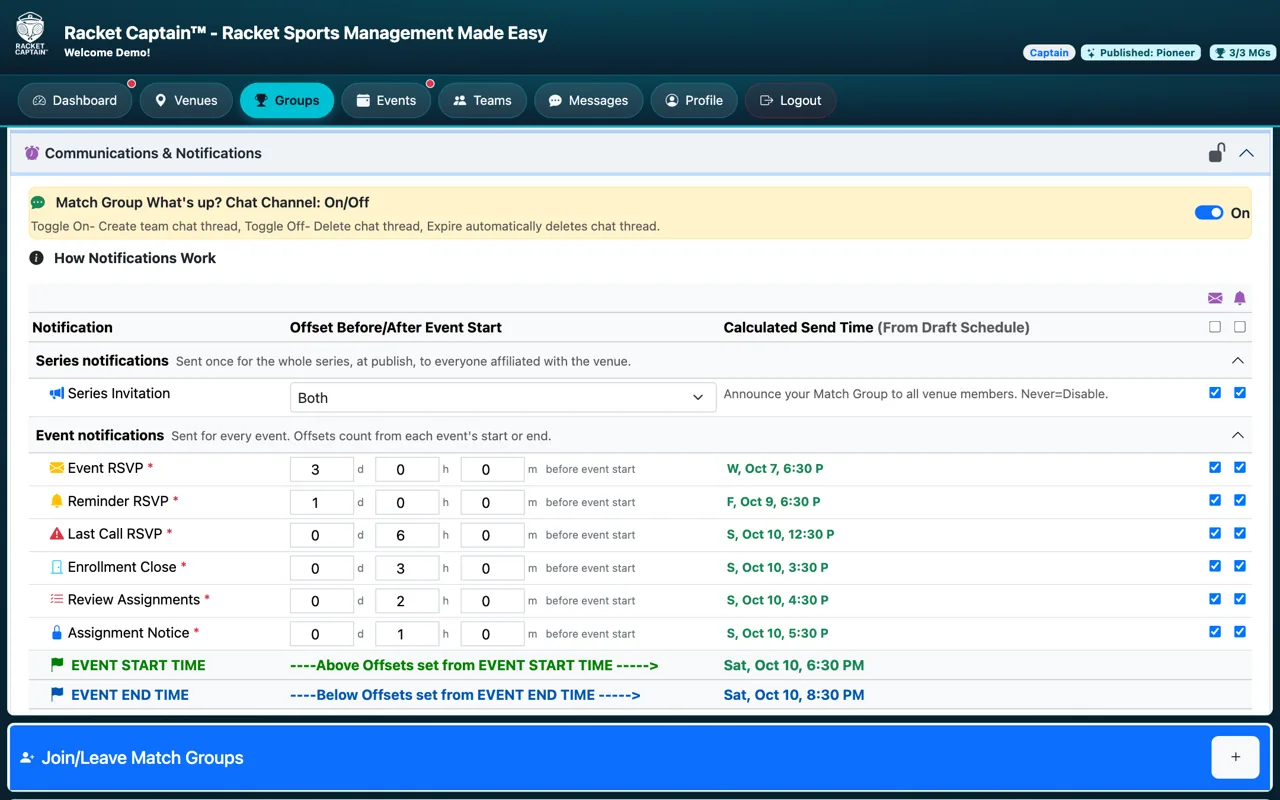
Step 1. Open Communications & Notifications. Switch the team chat on or off, then set the Series Invitation.
-
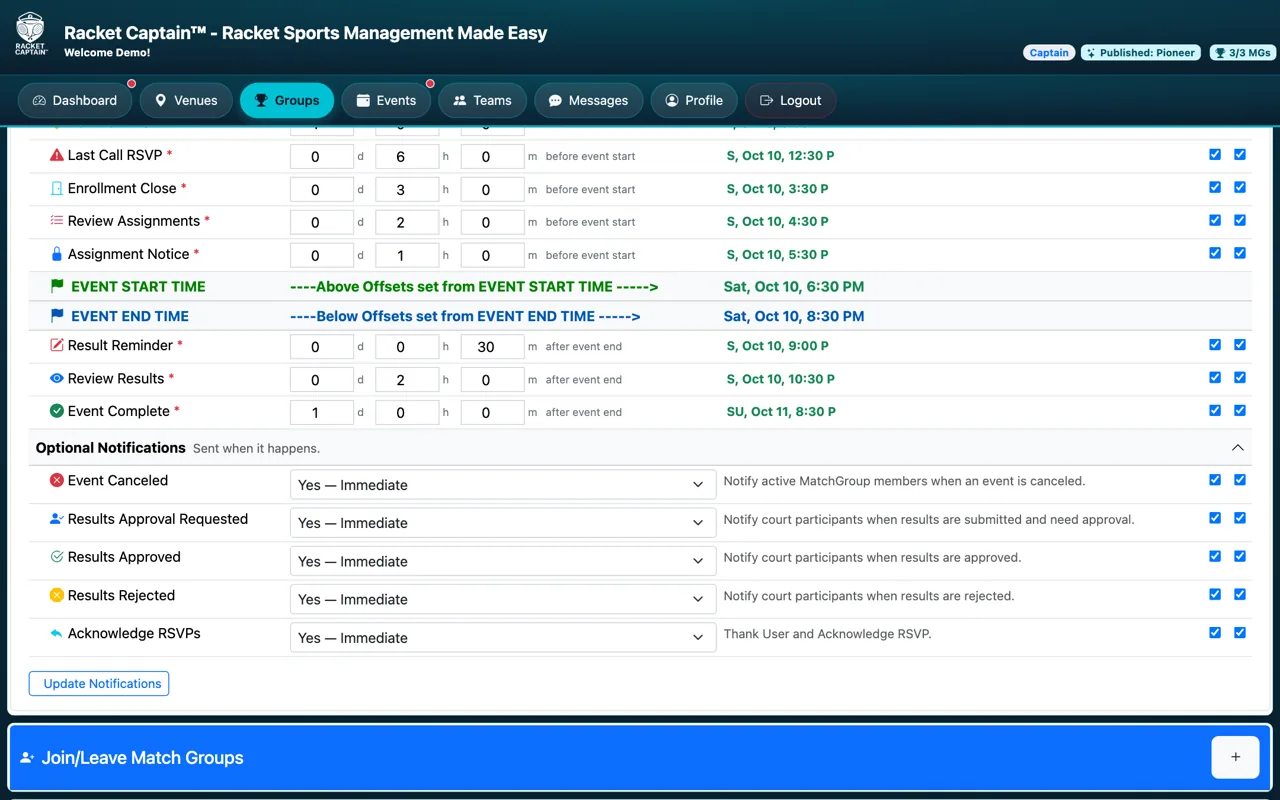
Step 2. For each event notification, pick how long before the start (or after the end) it goes out, and tick Email and/or Push. The Calculated Send Time shows exactly when. Tap Update Notifications.
Fields in this section
| Field | What it means |
|---|---|
| Chat Channel | On: creates the team chat. Off: deletes the chat thread and its history. |
| Series Invitation | Announces your Match Group to everyone at the venue when you publish. |
| Event RSVP / Reminder RSVP / Last Call RSVP | The invitation and the reminders to answer. |
| Enrollment Close | When RSVPs close. |
| Assignment Notice | Tells players their court and matchup. |
| Result Reminder / Review Results / Event Complete | After the event: enter scores, review them, and the wrap-up. |
| Optional Notifications | Sent when it happens — Event Canceled, Results Approval Requested, Results Approved, Results Rejected, Acknowledge RSVPs. |
Good to know
- The defaults work for most groups — change only what you need.
- Open How Notifications Work in the app for the difference between email and push.
- Every notification, who receives it and how the timing works: see Reminders & notifications.